Global Proxies AI Tools Guide (Skills + MCP)
Global Proxies AI Tools lets you query and manage your Global Proxies account through an AI client. MCP provides the actual account tools; the quanqiudaili Skill helps the AI choose products, check conditions, and organize the steps. Install them together to ask for balances, compare purchase options, manage accounts, renew proxies, or prepare connections in natural language.
The default configuration provides 38 tools: 20 read-only tools and 18 write tools. Writes require confirmation by default. Add --readonly if you only need queries. The project is named quanqiudaili-agent-tools; its client configuration entry and Skill are named quanqiudaili.
- Website: quanqiudaili.com.
- Project: quanqiudaili-agent-tools.
1. Before you start
Prepare an AI client that supports local MCP, Node.js 20 or newer, and Git. Your computer needs access to GitHub and npm to download the project and dependencies.
Check the commands in a terminal:
node --version
npm --version
git --version
Sign in to Global Proxies and create a key on the API Keys page. See the API Key instructions.
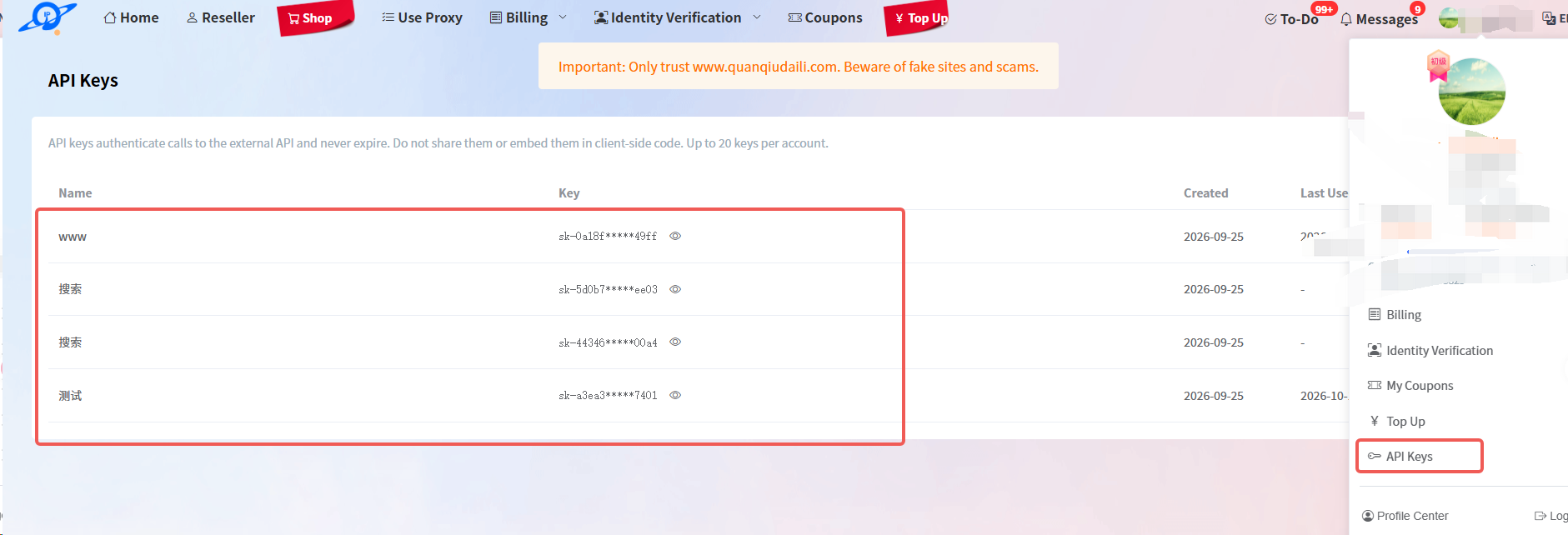
QQDL_TOKEN means this website API Key. It is required for installation and MCP use, including read-only mode. It is not your website password. Enter it in the local installer or client configuration; do not send it to the AI or include it in public files or screenshots.
The service uses stdio / a local command: your AI client starts it on your computer. It does not provide a remote MCP HTTP address to paste into the client.
2. Install Skills and MCP together
Choose one of these two methods. Both install the Skill and configure MCP for your selected clients.
Method A: install with npx
Run this in a terminal:
npx -y github:empty-byte/quanqiudaili-agent-tools install
It downloads and builds the project before opening the installer. Select your clients and installation scope, then enter your API Key when prompted. You do not need to clone the repository or run npm ci separately.
Keep the final install argument; without it, the command only starts MCP and does not install the Skill or configure clients.
Method B: download the source first
If you prefer to keep the source locally, run these commands in order:
git clone https://github.com/empty-byte/quanqiudaili-agent-tools.git
cd quanqiudaili-agent-tools
npm ci
node dist/src/index.js install
Run npm ci from the repository directory containing package.json; it installs dependencies and builds the project automatically. If you already have the source, enter that directory and run the last two commands.
Supported clients
| Client | --agents value | Scope |
|---|---|---|
| Claude Code | claude-code | User / project. |
| Cursor | cursor | User / project. |
| Codex | codex | User / project. |
| Gemini CLI | gemini-cli | User / project. |
| OpenCode | opencode | User / project. |
| GitHub Copilot CLI | github-copilot-cli | User / project. |
| VS Code / Copilot | vscode | User / project. |
| Windsurf | windsurf | User only. |
| Kiro CLI | kiro-cli | User / project. |
| Zed | zed | User / project. |
| Cline | cline | User only. |
Claude Desktop uses the optional manual MCP configuration below. It is not a combined-installation target, and manual MCP setup does not install the Skill.
Choose user scope for use across your projects. Project scope targets the directory where you run the command. If you run it inside the tools repository, that repository becomes the target; enter your business project first when you want to install there.
Claude Code and GitHub Copilot CLI have conflicting project-level service configurations. Use user scope when installing both. Client versions and settings still determine whether the installed Skill and MCP are loaded.
Common options
For example, install for Claude Code, Cursor, and Codex together:
npx -y github:empty-byte/quanqiudaili-agent-tools install --agents claude-code,cursor,codex --scope user
| Option | What it does |
|---|---|
--agents codex,cursor | Select one or more clients; omit it to choose interactively. |
--scope user / --scope project | Select user or current-project installation. |
--readonly | Enable only the 20 query tools. |
--dry-run | Preview paths and check conflicts without installing files, querying your account, or requiring a key. |
--replace | Replace conflicting same-name configuration or Skill content after you have reviewed it. |
--list / --help | List supported clients or show installation help. |
For source installation, append the same options to node dist/src/index.js install. An example read-only preview is:
node dist/src/index.js install --agents codex --scope user --readonly --dry-run
Remove --dry-run to perform the installation. A preview invoked through npx can still download the installer and dependencies; the preview itself does not contact the Global Proxies backend.
API Key validation and local files
Key input is visible in the terminal. The installer validates it through a read-only account query and writes installation files only after validation succeeds. Invalid keys, connection failures, and timeouts stop installation; interactive users can retry or cancel. Installation does not purchase, renew, or delete accounts.
The key is saved in plain text in the selected client's local MCP configuration, not in the Skill. Existing files are backed up before modification, and backups may contain the key too. Keep project configuration and backups out of repositories and shared screenshots. The installer does not add ignore rules for you.
Existing services and unrelated settings are preserved. A conflicting manually edited entry stops installation by default; use --replace only when you want the installer version. TOML files retain setting values but are reformatted and lose comments; the original file is available in the backup.
For noninteractive use, specify the clients and supply the key through QQDL_TOKEN or --token-stdin. There is no install --token argument. Avoid placing a real key directly in command history.
3. Check that it works
After installation, restart or reload the client and complete its project-trust and tool-permission prompts. Check these separately:
- Skill: the client can find the
quanqiudailiSkill. - MCP: the
quanqiudailiservice is connected and its tools are enabled. - Account query: the AI actually calls a tool and returns a successful result.
Start with:
Use the Global Proxies tools to check my account balance. Do not change anything.
Then try:
Use the quanqiudaili Skill to list my sub-accounts by product, showing the first 20 in each category. Do not purchase or modify anything.
Successful installation means the files were configured and the key passed validation. It does not prove that the client has loaded the Skill or connected to MCP. If the AI answers without using a tool, check Agent/tool mode and explicitly ask it to use quanqiudaili.
4. Ask for the workflow you need
You do not need to memorize tool names or product IDs. Describe the product, quantity, location, term, and target accounts. For changes, ask the AI to show its proposal before you approve it.
| Workflow | Example request |
|---|---|
| Products and purchases | “Compare no-expiry and 30-day Dynamic Residential traffic for 100 GB. Check the applicable price and my balance, then wait for my confirmation.” |
| Accounts and traffic | “Find my Dynamic Residential account named project-a. Show its usage and current limit, then explain how to give it an extra 5 GB of allowance.” |
| Renewals and bandwidth | “Find my Static Residential accounts expiring soon. Show renewal options and cost information, preserve their renewal settings, and do not renew yet.” |
| Deletion and refunds | “Check whether this purchase order is eligible for a refund application. Explain what happens to the accounts and wait for my decision.” |
| Proxy connections | “Prepare five US sessions using my existing Dynamic Residential account, with a desired 10-minute IP duration. Do not create accounts or send test traffic.” |
For a static-IP purchase, specify how many IPs you need, the product and country, and the term. For a bandwidth upgrade, ask for the current bandwidth, target option, quoted difference, and effect on expiry. Account searches should identify the exact targets before any batch change.
Product differences that matter
| Product | Billing | Main limits |
|---|---|---|
| Dynamic Residential, no time limit | GB traffic. | Integer 1–5,000 GB per order. Buying traffic and creating sub-accounts are separate actions. |
| Dynamic Residential, monthly | GB traffic for 30 days. | Integer 1–5,000 GB per order; unused traffic expires at the end of the term. |
| Static Residential standard / native / ISP native | IP count and term. | 1–300 IPs per order; supported terms are 7, 30, 90, 180, or 360 days. |
| Data Center | IP count and term. | Up to 50 IPs per order; purchasing or renewing for 7 days is unsupported. |
| Dynamic Residential unlimited traffic | Gateway, Mbps, and term. | One account per new order; 30, 90, or 180 days; no automatic renewal. |
For bandwidth-based unlimited traffic, US, DE, and SG are access gateways, not exit countries. The selected gateway cannot be changed after creation. Purchase, renewal, and bandwidth-upgrade quotes are supported, but the ordinary inventory check does not cover this product.
Prices and stock can change between a query and an order. Dynamic traffic pricing follows the whole-order quantity tier and available custom-price allowance; do not assume the lowest displayed unit price applies. A quote does not lock a price or reserve stock. Paid test IPs require an eligible account and are not a free trial.
Renewals, limits, and connections
Ordinary Static Residential and Data Center renewals preserve the automatic-renewal switch and, when unspecified, the current bandwidth-renewal setting. The term selected for this renewal also becomes the term for future automatic renewals. Accounts with different settings may need separate batches.
There is currently no exact selected-account renewal-total quote for ordinary static/Data Center products. Available price tables support estimates, while actual cost also depends on account and bandwidth conditions. If you require an exact amount or a strict spending limit that the available data cannot establish, check the website before proceeding.
Setting a traffic limit below usage can disable and disconnect an account. Raising a sub-account's allowance and buying more account traffic are different actions. Ask the AI to clarify which one you need.
For dynamic connections, no ss parameter means rotation mode; an ss value requests a sticky session. Separate Session IDs do not guarantee different exit IPs, and a sticky session can change IP early when a node goes offline. Changing a Session ID does not create a business sub-account. The Skill includes the Session specification; use actual account connection details, not invented hosts or passwords.
Generating connection strings does not test connectivity. Actual proxy requests can consume traffic, so ask explicitly if you want a connection test.
5. Review and confirm changes
Every write tool uses confirmation by default, including remark changes and account creation. Your client may show a confirmation dialog or the AI may present an operation preview and one-time confirmation code.
Before approval, check the product, account, quantity, term, gateway or country, bandwidth, and consequences. The preview itself does not query prices or your balance. Ask the AI to obtain applicable quotes and explain any unavailable information first.
The AI must wait for your explicit agreement. A confirmation code's waiting period does not prove that you agreed; simply waiting is not permission to execute. If parameters change or a code expires, review a new preview. Keep default confirmation enabled; --yes disables it and is not added by the installer.
Deletion is irreversible. A submitted refund application is still subject to review and does not mean money has arrived; approval can terminate and delete the associated accounts. Ask the AI to explain the relevant product rules before submission.
If a write times out, disconnects, or has an unclear result, do not automatically repeat it. Check website orders and account state first. For partial batch results, distinguish successful, failed, and unknown items before deciding whether anything should be retried.
To restrict the connection to queries, install with --readonly. Write tools then are not available; the AI should explain this limit instead of bypassing it with another connection or direct API requests.
6. Manual MCP setup, if needed
Combined installation is usually sufficient. The optional examples below are for MCP-only setup, including Claude Desktop. They do not install the Skill. Do not add a second service if the installer has already configured the client.
Manual MCP configuration (optional)
Replace YOUR_API_KEY locally and preserve other existing settings. The AI client launches the command; running it in an unrelated terminal is not enough to connect the client.
Claude Desktop, Cursor, and Claude Code use the standard mcpServers entry:
{
  "mcpServers": {
    "quanqiudaili": {
      "command": "npx",
      "args": ["-y", "github:empty-byte/quanqiudaili-agent-tools"],
      "env": { "QQDL_TOKEN": "YOUR_API_KEY" }
    }
  }
}
- Claude Desktop: open Developer → Edit Config and edit
claude_desktop_config.json. - Cursor: use
~/.cursor/mcp.jsonfor your user or.cursor/mcp.jsonfor the current project. - Claude Code: use the project's
.mcp.json. For a user-level installation, use the combined installer.
Codex: add this to ~/.codex/config.toml:
[mcp_servers.quanqiudaili]
command = "npx"
args = ["-y", "github:empty-byte/quanqiudaili-agent-tools"]

[mcp_servers.quanqiudaili.env]
QQDL_TOKEN = "YOUR_API_KEY"
VS Code / Copilot: open MCP: Open User Configuration, or use the project's .vscode/mcp.json. Its top-level key is servers:
{
  "servers": {
    "quanqiudaili": {
      "type": "stdio",
      "command": "npx",
      "args": ["-y", "github:empty-byte/quanqiudaili-agent-tools"],
      "env": { "QQDL_TOKEN": "YOUR_API_KEY" }
    }
  }
}
For query-only access, add "--readonly" to the end of args. On Windows, if the client cannot start npx, use "command": "cmd" with these arguments:
["/c", "npx", "-y", "github:empty-byte/quanqiudaili-agent-tools"]
To print configuration templates for these and other clients, including Windsurf and Zed, run:
npx -y github:empty-byte/quanqiudaili-agent-tools setup --npx
setup only prints templates. It does not install the Skill, write client files, or validate a key. The npx download can still require network access. Restart the client after saving its configuration, then make the read-only balance query described above.
7. Update an installation
For a source installation, enter the tools directory, update and build it, then rerun installation for the same clients and scope:
git pull --ff-only
npm ci
node dist/src/index.js install --agents claude-code,cursor,codex --scope user
For an npx installation, rerun the installer with the same options using the intended current version. If it still downloads old functionality, use an updated source checkout to make the version explicit. Restart the client afterward; an already-running MCP process does not reload new code automatically.
Repeat --readonly during updates if you want to keep query-only access. Without it, installation uses the default full-tool mode. Managed content that has not been edited is updated; conflicts are reported before replacement.
Combined installation uses a separate runtime copy. Updating the source alone does not update that copy; rerun install after building.
If you used earlier quanqiudaili-mcp instructions, update repository URLs, commands, and local paths to quanqiudaili-agent-tools. The old executable name is not an alias. The current client entry remains quanqiudaili; check user and project configuration for obsolete or duplicate services after verifying the new one works.
There is no uninstall command or automatic removal of old versions and backups. Do not delete files still referenced by a client. If your Node.js installation path changes, rerun the installer to refresh the launch configuration.
8. Common questions
| Problem | What to do |
|---|---|
| Commands are missing or downloads fail. | Check Node.js 20+, Git, PATH, and access to GitHub/npm. Restart the terminal and client after environment changes. |
install is not recognized. | Obtain a version containing the installer; use an updated source checkout if necessary. |
| API Key is missing or rejected. | Use the website API Key as QQDL_TOKEN, including in read-only mode. Update the active local configuration and reconnect. |
| Installation reports a conflict. | Review the named file and same-name entry. Use --replace only if you want to replace that customized content. |
| Installation succeeded but no Skill or tools appear. | Reload the client, check Skill support and the quanqiudaili connection, and enable Agent/tool permissions. |
| Purchase or modification tools are unavailable. | Check --readonly and disabled tools. A read-only connection cannot execute writes. |
| The AI cannot provide an exact price or the expected accounts. | Check the product, pricing capability, and actual matched accounts. Do not substitute another product's quote or act on unverified search results. |
| A write times out or a refund is still pending. | Verify orders, account state, or refund review on the website. Do not repeat an uncertain write or treat submission as final approval. |
For support, include the client name, installation method, relevant error, and intended operation. Mask API Keys and proxy passwords in any logs or screenshots you share.


